Basic information on financial databases: cook books, tips and tricks & economic news

This blog contains schematic easy to grasp - hands on - help in performing searches in economic databases, making work sets and making them inter-exchangeable between the databases.

* Disclaimer. I am not a finance professional. Most posts are the result of personal findings.

Note:
All presented images are scaled and can be enlarged to original size (click the picture).

Search This Blog

Showing posts with label Zephyr. Show all posts

2/22/2016

Financial databases with IPOs, IPO-dates, company age, joint ventures.

In an ideal world all databases would contain all data and would be fully inter exchangeable.
This post aims an abridged overview of commonly used databases.
I deliberately chose not to focus solely on M&A databases.
Here are some databases.

For database with only publicly listed companies: date of incorporation (company age/ company founded) differs often from the IPO date, the date it went public. As for non public companies: no IPO date until further notice. But company age is retrievable.
Databases particularly concerning: Wharton/Compustat and Datastream (only listed companies)


AMADEUS (more Amadeus tips & tricks: here)
You can't find any data on deal types, IPOs etc. from the start menu.
So first you'll have to construct a workset of companies.
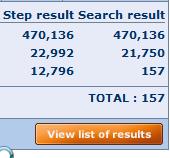
After your selections and opening the list of results, with VIEW list of results . . .


 . . . you can use  the link ADD at top right of the screen (image)
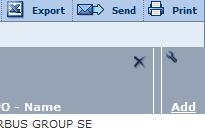


A new menu will open.
Note: this principle applies to all Bureau van Dijk databases: Amadeus, Bankscope, REACH, Zephyr etc.


If you can't find the desired data type, you can text search for it.
Give OK.


Joint ventures: a bit hidden
Follow above mentioned method.
Mergers & acquisitions.
Maybe it is sensible to make the selection from the start menu.
 ChooseMergers & acquisitions > M &A dels
A new window will open with selection boxes.


As you can see this conditional and focusses on a specific value. In this case, total assets.
Given the time period (-2 years) it ends up with this amount of joint-ventures.

Additional data can be gathered from the list of results.


BANKSCOPE (more bankscope tips & tricks: here)
(OECD countries)
You can't find any data on IPOs etc. from the start menu.
So first you'll have to construct a workset of companies.
On the other hand, there is the option to look for Mergers & Acquisitions


IPO date has to be searched separately: List of results > ADD > type in IPO date
After your selections and opening the list of results, with link ADD you can add extra data without further limiting your search


DATASTREAM: (for more Datastream tips & tricks: here)
Date company founded (WC18272 Static DATA)
(data SHOW as NA not available)


SDC (for SDC tricks and tips see: here)
SDC offers IPO data.
Global New Issues (GNI)
Settings for this example:
United States, all Public new issues, US common stock, time scope from 3rd January 2000 > on
In the Menu All Items, search words IPO
or browse through TAB Deal. E.g.: IPO date or IPO flag, select all IPOs.
Nr of IPOs: 3707

Make Custom Report >


I selected name, issue dates, filing date, offer price, shares offered . . . date founded


Secondary IPO data: M&A database
Most basic is to search in the menu 'All categories' searching for IPO
 
Most of presented items open new menu widows enabling to refine your search.
Looking for IPOs of companies involved in mergers and acquisitions is harder.
Maybe the following options is better.
I will stick to a limited set :
Period:01/01/2000
US targets
US acquirors
Deal value:  > $ 500M
Deal status: completed
Press Button Execute in the
TOP BAR
Nr of deals: 4006


Two options now:
Using menu, ALL Items, search word IPO >


Many of these IPO data are flags : (Y/N)
Mind: using IPO at this moment will limit your search considerably.

Better is to go to Custom report.


Again use the ALL Items, search word IPO, but now the data won't influence the size of your work set


After selecting the desired items, click OK > and say NO you don't want to go back select items.
Back in the main Menu. Execute your search.


Joint Ventures

M&A database > select joint ventures
All dates . . . Search all Items: Cross border . Y . . .  8723 hits
Make custom report to add extra data
Company names, name of the joint venture, nation, joint venture flag, status of the alliance . . .


Example.


WHARTON

(TO B
Amadeus
Ownership data : codes.
JO = Joint Venture


Compustat (North America, Compustat Global)
(more Compustat tips & tricks here)
Pathway:
Choose database > Fundamentals annual > search with CTRL-F: IPO date
WRDS explanation: This item is the date of a company's initial public stock offering. If the date of a company's initial public stock offering is not available, the first trading date in the major exchange is used.

CRSP
According to WRDS support, it should be somewhere under this data item: MSFHDR (stands for monthly security financial header, I believe)
De proper pathway is as follows: CRSP > Stock/ security files > stock header info >
The data items concerned are
Begin of stock data (in output labeled BEGDAT)
End of stock data (in output labeled ENDDAT)
Some additional complications will appear in a few cases when a firm (PERMCO) had multiple securities (PERMNOs). In those cases, you would need to take the oldest BEGDAT and the latest ENDDAT.

ZEPHYR (more Zephyr tips & tricks: here)
Zephyr has a focus on M&A data specifically
World wide and listed and unlisted companies
After your selections and opening the list of results, with link ADD you can add extra data without further limiting your search


After calling the view list of results and pressing the ADD link, this menu openns, which is devided in deal info, company info and advisor.


As you can see, you can text search info or unfold the categories.


List of results with added data

2/14/2013

Bankruptcy in databases

People sometimes ask about data on bankruptcies and which databases provide data about it.
Not alle datbases deleiver data, and not all in the same form.
In this post I am going to list an overview to the benefit of our users.

REACH (Dutch database on Dutch companies) Unfortunately there is no language switch
** Specific sections are available with some basic financial information, information on ownership and the board & directors. (compensationsare there, but scarce)**

Selection method > e.e. region > industry > call result list (resultatenlijst) of companies.
Press  link > Meer > unfold in the tree: Status & rechtsvorm > juridische gegevens > status > huidige status and datum huidige status (current status and date current status)

The output give current status of the company and the date of that status. In your out put export (Excel) it is easy to filter on status.

If you are interested in company status is a better idea to wait with that selection until your have made your first selections. (image)


Result list (resultatenlijst) Orange button
In order to add data to your set (not further limiting the number of selected companies) press the link 'meer' (more)


Selecting identification numbers is always a good idea. Even though the language is Dutch, identification numbers are independent of this. Stock traded companies will ofthen have SEDOL, ISIN or Tickers.


Status


 Listed: (bankruptcy)
 Listed (moratorium, suspension of payment)


Delisted(bankruptcy)
Delisted (moratorium, suspension of payment)
Delisted (Liquidation)


 Example of list:
(Stock traded)
Status could be: ingeschreven (currently running),  failliet (bankrupt)

AMADEUS
In Amadeus status is presented like this:


Compustat
Compustat has the data item DLRSN (Reason for deletion)
Downloading provides codes, if deleted, and these can be found in the Compustat expressfeed manual.
The codes are:
01 Acquisition or merger
02 Bankruptcy
03 Liquidation
04 Reverse acquisition (1983 forward)
05 No longer fits original format (1978 forward)
06 Leveraged buyout (1982 forward)
07 Other (no longer files with SEC among other possible reasons), but pricing continues
09 Now a private company
10 Other (no longer files with SEC among other reasons)
11 Agency governing settlement of securities' trading inactivated the issue's Local Settlement Code because the issue matured,
expired or was called. No successor settlement code was established.
12 Agency governing settlement of securities' trading inactivated the issue's Local Settlement Code. A successor settlement
code was established; issue was changed for another, as in a par value change.
13 Price source for the SEDOL was no longer available. Issue now identified under different SEDOL.
14 Fully paid issue was replaced or partly paid issue was replaced by a subsequent installment. Successor settlement code was established.


Bankruptcy is code 02
For help in searching Compustat I refer to my other Compustat Pages


Bankscope does provide current status, but no status date.
Zephyr does not provide any status data

Datastream does not provide any status data. Datatype: In case of dead stock datatype TIME tells the last trading date, but it is uncertain if this does actually is the date a company ceases to exist.
SDC: liquidation data are mostly about funds and such, not companies.
The M&A database offers a bankruptcy flag (Y/N), but no date.

Otherwise, newspaper sites might give bankruptcy dates or if present maybe annual reports.

Sources:
Curatoren.nl  (Dutch situation)
Lexis/Nexis (Company Information/ newspapers)
Factiva(newspapers)

12/12/2012

Combining data sets 3: Amadeus, Zephyr and Bankscope to other databases

In an ideal world all data of all databases would be inter exchangeable without effort. Unfortunately that's not the case. This series of posts will provide hands on info on combining data sets between different data bases.

Why would you bother?

In cases with only a handful of company it would be no big deal to search your companies one by one, but when your work sets exceeds a significant number, say over 50, your searches would get too time consuming.

Using company names in combining data bases:

Not a good idea. Names change, and different data bases may decide to present company names differently: word order, language or abbreviated names.

Example:
Koninklijke Ahold
Datastream: Ahold Kon.
Compustat: KONINKLIJKE AHOLD NV
Amadeus: Koninklijke Ahold N.V.
Audit analytics: Royal Ahold
It's a better idea to use objective methods to identify company by, the 'company identifiers.'

Amadeus, Zephyr and Bankscope
These three Bureau van Dijk databases use the same company identifiers. Selecting the identifiers works with the same interface, so the presented method applies to all three databases. (all three databases use the same company identifiers)

Example: Netherlands, public, active companies, retailing.
(Select and press OK.)
Region


Legal form: public


Legal status: active companies


Sector. It's possible to select different industries. NACE, NAICS, US SIC and NACE rev.2 main section


The following blog item (click link) gives insight in the balance sheet data Amadeus delivers.
But what if that is not sufficient and you want to further your quest?

In that case it is a good idea to check out which identifiers can be  used.
You can do that either from the main menu: identification numbers


Or, from the 'list format' option. This can only be done after generating your list with results.
Choose New format. Third: from the results list you can also click the link : "add" (top right of the list screen).
It brings up te same window as list format > new format:


Now unfold the identifiers: stock data > identification numbers


Since you already generated the results list, the numbers of hits wont be further limited.

Export your results list.


To prevent issues with conversions and mess ups wit your original data, it is best recommended to export your data as tabulated TXT.
Next open your exported document in Excel with a wizard and select the identifier you want to use in another database.
See for an illustration Opening your compustat save (click link)

See also: Loading Zephyr data into Amadeus. (click link)

11/15/2012

Ownership data

The library of the Vrije Universieit has a limited number of databases containing ownership data. This post will attempt to provide a comprised overview.

ZEPHYR
(advanced menu)

From the main menu ownership data can be found here:


Independance indicator:
Provides information on he stake in a company (25%, 50%, +50% or single company +50% ownership.)
Ultimate owners: (most often the holding or the company tha owns most stock)

AMADEUS


Mark's blog Ownership Amadeus


Both menus look very similar.

WRDS DATABASES
Overview of ownership databases
Corporate Governance and Ownership Data
    Company Management and Executive Compensation
        Compustat Executive Compensation > individuals
        Corporate Library Governance Data

 
    Insiders and Blockholders Ownership
        Thomson-Reuters Insider Transactions Data
        RiskMetrics Directors Ownership
        ExecuComp Executive and Director Ownership  individuals
        Corporate Library Executive and Director Ownership
        Blockholders (Legacy) > old version of WRDS
individuals

WRDS
Blockholder information (1996-2001)
follows
   
    Mutual Fund Ownership
        Thomson-Reuters Mutual Fund Holdings
        CRSP Mutual Fund Holdings *
        MFLinks


* CRSP > Quarterly update > Treasury monthly > portfolio holdings > CRSP Mutual funds - Holdings
The data is indirect or absent.

Blockholders access through menu on the left, menu center of the page or with the drop down option at the home page (top left)

Output Microsoft


SDC DATABASES

Global New Issues (GNI)
Ownership involving new issues.
Possible search terms (all items): Ultimate parent; owned

Mergers & Acquisitions

Ownership in and around deals
Possible search terms (all items): ownership (1 item: ESOP; Employee Stock Ownership Plan Flag), ultimate parent, owned*


US Target, non-US targets
Note: percent of shares owned after transaction, percent owned by acquiror post merger, perecent owned by target post merger.
In New Custom (Report tab): the same items, but more items can be selected without effecting the number of deals.
Joint ventures/ alliances
Possible search terms:
Stake, share, owned
Repurchases
Possible search terms: repurchase, shares


LEXIS/NEXIS
Follows


Deal in Zephyr


The database Zephyr contains Mergers and acquisitions, Initial Public Offerings and Venture Capital transactions with links to financial company info. Zephyr covers world wide data of over 480.000 transactions in past five years. Up to 100.000 new deals are added every year.

In this example we'll show a couple of most common search actions and various types of deals.

If you want to search deals of a specific company, you can choose looking by company name or an identifier (unfold the + symbol Company) like ISIN. Otherwise it may be interesting to look for specific deals, rumours or narrow down your searches with prefered criteria as you progress.


Search example: Completed mergers between listed retail companies, target country Netherlands.
In the menu you can keep track of the effect of each added limiter.


From this point you can start constructing your report.


The table is an overview of the report results. Everything (blue, where the hand or finger appears is clickable and steps into more detailed information.


In to extend the data show you can do the following: either click ADD (top right table) or move cursor over list format > new format (menu on the right). It will lead you to the same menu.
Exteded table:


Now we can start exporting (savig the output)


The followig menu ofers a couple of output options. it's my sugestion to always settle for TAB delimited TXT, which provides an output without 'hidden' coding which might intervere the data when opening in another program, resulting in useless data. TXT does not have that problem
Tip: make certain you always take care of adding company identifiers to your output, which might be usefull, in case you need additional data from other databases.

A pop-up appears prompting you to make a couple of decisions. (allow the download)
Choose for Saving, which offers destination selection.
Couple of useful links: