The most commonly used ratios in finance.
How to interpret the text:
Data types presented in RED are downloadable data
If ratios or their components are not ready for download I try to present ways to calculate them (indirectly)
1. Debt to equity ratio
2. Current ratio
3. Quick ratio
4. Return on equity (ROE)
5. Net profit margin
1. Debt-to-Equity Ratio
Total Liabilities / Shareholders Equity
Shareholder equity = book value x number of shares
Compustat
Direct download: DLC
DLC represents the total amount of short-term notes and the current portion of long-term debt (debt due in one year).
LT = Total liabilites
BKVLPS (book value per share)
(CSHO) Common Shares Outstanding
Formula:
LT / (BKVLPS x CSHO) = debt to equity
Amadeus
Book value per equity = Book value per share x number of shares outstanding
Instead of Book value of equity, Market Value ( MV) can be used (market capitalisation)
(closing price x shares outstanding)
In Amadeus only closing price frequencies monthly and weekly, not daily
And: market value per year can be downloaded
Total liabilities = current liabilities + long term liabilities
Formula:
Total debt / total (shareholder) equity = Total liabilities / (market capitalisation x number of shares outstanding) OR (market capitalisation x book value per share)
Datastream*
WC03351 Total liabilities:
WC03995 Shareholder equity: (book value per equity)
NOSH Number of shares outstanding
Instead of Book value of equity, Market Value ( MV) is used (market capitalization)
Market Value MV = share price (P) x number of shares (NOSH) (market capitalisation)
Formula:
1. WC03351 / WC03995
2. WC03351 / MV
*) using search terms debt equity ratio in datatypes provides to following data producing datatypes:
WC08231 (total debt % common equity); WC08221 (total debt % total capital/std); WC08231A (total debt % common equity); WC08231R (total debt % common equity) !! Not all companies provide data. Error types like No data values found; no world scope data; access denied
For more downloadables on income statement and balance sheet see this
2. Current Ratio (working capital ratio)
Current Assets / Current Liabilities
Compustat
Current assets total / current liabilities = current ratio
ACT = Current assets total
LCT = Current Liabilities - Total
Formula:
Current ratio = ACT / LCT
Amadeus
Formula:
Current ratio Current assets total / current liabilities
Datastream
Formula:
WC08106 Current ratio = (current assets total [WC02201] / current liabilities [WC03101] )
Only industrials apply
3. Quick Ratio (quick assets ratio)
(Current Assets – Inventories) / Current Liabilities
Compustat
INVT -- Inventories - Total
ACT = Current assets total
LCT = Current Liabilities - Total
Formula:
(ACT - INV) / LCT
Amadeus
Inventories not in AMADEUS
Datastream
Quick ratio WC08101
Inventories total WC02101
Current assets WC02201
Current liabilities WC03101
Formula:
(WC02201 - WC02101) / WC03101 = WC08101
Not all companies provide data
4. Return on Equity (ROE) (return on net worth)
Net Income / Shareholder's Equity or
(net earnings (after taxes) - preferred dividends) / common equity
Compustat
NI Net income
(BKVLPS x CSHO) shareholder equity
BKVLPS (book value per share)
CSHO Common Shares Outstanding
Formula:
NI / (BKVLPS x CSHO)
Amadeus
P/ L for period = Net Income
Book value per share x number of shares outstanding = Book value per equity
ROE using net Income %
Formula:
(P/L) / (Book value per share x number of shares outstanding) = ROE
Datastream
ROE (total): WC08301
WC03995 Shareholder equity: (book value per equity)
NOSH Number of shares outstanding
Instead of Book value of equity, Market Value ( MV) is used (market capitalization)
Market Value MV = share price (P) x number of shares (NOSH) (market capitalisation)
Formula: WC01001 / MV = WC08301 OR WC01001 / WC03995 = WC08301
5. Net Profit Margin
Net Profit / Net Sales
Compustat
Gross profit margin
Gross Income / Net Sales or Revenues * 100 = UGI / SALE x 100
Gross profit: GP (loss)
Gross income: UGI
. the difference between sales or revenues and cost of goods sold and depreciation.
Net sales or revenues: SALE (sales/turnover)
gross sales and other operating revenue less discounts, returns and allowances.
REVT = Revenue - total
GP = UGI / SALE x 100
Addition Compustat from (copyright) WWU Münster Data- items and ratios
Amadeus
Gross profit
Profit margin (%)
Sales
Formula:
Gross profit / sales (not exactly)
Datastream
DWNM = net profit margin
WC01001 Net sales or revenues
WC01540 Net profit( operating income)
* Components can't be all downloaded. Not all companies provide data
LINKS
Compustat: For more downloadables on income statement and balance sheet see this
Amadeus: For more downloadables on income statement and balance sheet see this
Datastream: for more downloadables on income statement and bsalance sheet, see this
Showing posts with label Amadeus. Show all posts
Showing posts with label Amadeus. Show all posts
8/16/2016


2/22/2016
Financial databases with IPOs, IPO-dates, company age, joint ventures.
In an ideal world all databases would contain all data and would be fully inter exchangeable.
This post aims an abridged overview of commonly used databases.
I deliberately chose not to focus solely on M&A databases.
Here are some databases.
For database with only publicly listed companies: date of incorporation (company age/ company founded) differs often from the IPO date, the date it went public. As for non public companies: no IPO date until further notice. But company age is retrievable.
Databases particularly concerning: Wharton/Compustat and Datastream (only listed companies)
AMADEUS (more Amadeus tips & tricks: here)
You can't find any data on deal types, IPOs etc. from the start menu.
So first you'll have to construct a workset of companies.
After your selections and opening the list of results, with VIEW list of results . . .
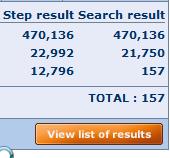
. . . you can use the link ADD at top right of the screen (image)
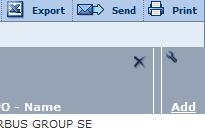
A new menu will open.
Note: this principle applies to all Bureau van Dijk databases: Amadeus, Bankscope, REACH, Zephyr etc.

If you can't find the desired data type, you can text search for it.
Give OK.

Joint ventures: a bit hidden
Follow above mentioned method.
Mergers & acquisitions.
Maybe it is sensible to make the selection from the start menu.
 ChooseMergers & acquisitions > M &A dels
A new window will open with selection boxes.

As you can see this conditional and focusses on a specific value. In this case, total assets.
Given the time period (-2 years) it ends up with this amount of joint-ventures.

Additional data can be gathered from the list of results.
BANKSCOPE (more bankscope tips & tricks: here)
(OECD countries)
You can't find any data on IPOs etc. from the start menu.
So first you'll have to construct a workset of companies.
On the other hand, there is the option to look for Mergers & Acquisitions


IPO date has to be searched separately: List of results > ADD > type in IPO date
After your selections and opening the list of results, with link ADD you can add extra data without further limiting your search
DATASTREAM: (for more Datastream tips & tricks: here)
Date company founded (WC18272 Static DATA)
(data SHOW as NA not available)
SDC (for SDC tricks and tips see: here)
SDC offers IPO data.
Global New Issues (GNI)
Settings for this example:
United States, all Public new issues, US common stock, time scope from 3rd January 2000 > on
In the Menu All Items, search words IPO
or browse through TAB Deal. E.g.: IPO date or IPO flag, select all IPOs.
Nr of IPOs: 3707
Make Custom Report >
I selected name, issue dates, filing date, offer price, shares offered . . . date founded

Secondary IPO data: M&A database
Most basic is to search in the menu 'All categories' searching for IPO

Most of presented items open new menu widows enabling to refine your search.
Looking for IPOs of companies involved in mergers and acquisitions is harder.
Maybe the following options is better.
I will stick to a limited set :
Period:01/01/2000
US targets
US acquirors
Deal value: > $ 500M
Deal status: completed
Press Button Execute in the
TOP BAR
Nr of deals: 4006
Two options now:
Using menu, ALL Items, search word IPO >

Many of these IPO data are flags : (Y/N)
Mind: using IPO at this moment will limit your search considerably.
Better is to go to Custom report.

Again use the ALL Items, search word IPO, but now the data won't influence the size of your work set

After selecting the desired items, click OK > and say NO you don't want to go back select items.
Back in the main Menu. Execute your search.
Joint Ventures

M&A database > select joint ventures
All dates . . . Search all Items: Cross border . Y . . . 8723 hits
Make custom report to add extra data
Company names, name of the joint venture, nation, joint venture flag, status of the alliance . . .
Example.

WHARTON
(TO B
Amadeus
Ownership data : codes.
JO = Joint Venture
Compustat (North America, Compustat Global)
(more Compustat tips & tricks here)
Pathway:
Choose database > Fundamentals annual > search with CTRL-F: IPO date
WRDS explanation: This item is the date of a company's initial public stock offering. If the date of a company's initial public stock offering is not available, the first trading date in the major exchange is used.
CRSP
According to WRDS support, it should be somewhere under this data item: MSFHDR (stands for monthly security financial header, I believe)
De proper pathway is as follows: CRSP > Stock/ security files > stock header info >
The data items concerned are
Begin of stock data (in output labeled BEGDAT)
End of stock data (in output labeled ENDDAT)
Some additional complications will appear in a few cases when a firm (PERMCO) had multiple securities (PERMNOs). In those cases, you would need to take the oldest BEGDAT and the latest ENDDAT.
ZEPHYR (more Zephyr tips & tricks: here)
Zephyr has a focus on M&A data specifically
World wide and listed and unlisted companies
After your selections and opening the list of results, with link ADD you can add extra data without further limiting your search


After calling the view list of results and pressing the ADD link, this menu openns, which is devided in deal info, company info and advisor.

As you can see, you can text search info or unfold the categories.
List of results with added data

This post aims an abridged overview of commonly used databases.
I deliberately chose not to focus solely on M&A databases.
Here are some databases.
For database with only publicly listed companies: date of incorporation (company age/ company founded) differs often from the IPO date, the date it went public. As for non public companies: no IPO date until further notice. But company age is retrievable.
Databases particularly concerning: Wharton/Compustat and Datastream (only listed companies)
AMADEUS (more Amadeus tips & tricks: here)
You can't find any data on deal types, IPOs etc. from the start menu.
So first you'll have to construct a workset of companies.
After your selections and opening the list of results, with VIEW list of results . . .
. . . you can use the link ADD at top right of the screen (image)
A new menu will open.
Note: this principle applies to all Bureau van Dijk databases: Amadeus, Bankscope, REACH, Zephyr etc.

If you can't find the desired data type, you can text search for it.
Give OK.

Joint ventures: a bit hidden
Follow above mentioned method.
Mergers & acquisitions.
Maybe it is sensible to make the selection from the start menu.

A new window will open with selection boxes.

As you can see this conditional and focusses on a specific value. In this case, total assets.
Given the time period (-2 years) it ends up with this amount of joint-ventures.
Additional data can be gathered from the list of results.
BANKSCOPE (more bankscope tips & tricks: here)
(OECD countries)
You can't find any data on IPOs etc. from the start menu.
So first you'll have to construct a workset of companies.
On the other hand, there is the option to look for Mergers & Acquisitions


IPO date has to be searched separately: List of results > ADD > type in IPO date
After your selections and opening the list of results, with link ADD you can add extra data without further limiting your search
DATASTREAM: (for more Datastream tips & tricks: here)
Date company founded (WC18272 Static DATA)
(data SHOW as NA not available)
SDC (for SDC tricks and tips see: here)
SDC offers IPO data.
Global New Issues (GNI)
Settings for this example:
United States, all Public new issues, US common stock, time scope from 3rd January 2000 > on
In the Menu All Items, search words IPO
or browse through TAB Deal. E.g.: IPO date or IPO flag, select all IPOs.
Nr of IPOs: 3707
Make Custom Report >
I selected name, issue dates, filing date, offer price, shares offered . . . date founded

Secondary IPO data: M&A database
Most basic is to search in the menu 'All categories' searching for IPO

Most of presented items open new menu widows enabling to refine your search.
Looking for IPOs of companies involved in mergers and acquisitions is harder.
Maybe the following options is better.
I will stick to a limited set :
Period:01/01/2000
US targets
US acquirors
Deal value: > $ 500M
Deal status: completed
Press Button Execute in the
TOP BAR
Nr of deals: 4006
Two options now:
Using menu, ALL Items, search word IPO >

Many of these IPO data are flags : (Y/N)
Mind: using IPO at this moment will limit your search considerably.
Better is to go to Custom report.

Again use the ALL Items, search word IPO, but now the data won't influence the size of your work set
After selecting the desired items, click OK > and say NO you don't want to go back select items.
Back in the main Menu. Execute your search.
Joint Ventures
M&A database > select joint ventures
All dates . . . Search all Items: Cross border . Y . . . 8723 hits
Make custom report to add extra data
Company names, name of the joint venture, nation, joint venture flag, status of the alliance . . .
Example.

WHARTON
(TO B
Amadeus
Ownership data : codes.
JO = Joint Venture
Compustat (North America, Compustat Global)
(more Compustat tips & tricks here)
Pathway:
Choose database > Fundamentals annual > search with CTRL-F: IPO date
WRDS explanation: This item is the date of a company's initial public stock offering. If the date of a company's initial public stock offering is not available, the first trading date in the major exchange is used.
CRSP
According to WRDS support, it should be somewhere under this data item: MSFHDR (stands for monthly security financial header, I believe)
De proper pathway is as follows: CRSP > Stock/ security files > stock header info >
The data items concerned are
Begin of stock data (in output labeled BEGDAT)
End of stock data (in output labeled ENDDAT)
Some additional complications will appear in a few cases when a firm (PERMCO) had multiple securities (PERMNOs). In those cases, you would need to take the oldest BEGDAT and the latest ENDDAT.
ZEPHYR (more Zephyr tips & tricks: here)
Zephyr has a focus on M&A data specifically
World wide and listed and unlisted companies
After your selections and opening the list of results, with link ADD you can add extra data without further limiting your search


After calling the view list of results and pressing the ADD link, this menu openns, which is devided in deal info, company info and advisor.

As you can see, you can text search info or unfold the categories.
List of results with added data

6/29/2015
Auditor independence, auditor tenure and restatements
Restatements happen when things in the statement are found incorrect.
The cause could be anything from accounting errors, noncompliance with accounting principles, misinterpretations, fraudulent activities or other.
Restatements can be positive or negative. No need to say that a negative restatement can influence stock trade and or company performance. ( source Investopedia)
Needed extra statements:
8-K
10-Q
10-K


5/01/2014
Industry codes, segments and demographic info - databases
Segments always puzzled me. What does it mean? Company parts, what does one branch do and where? And if I understand what it is, where can I find it?
This post aims at the latter (with thanks to Mark Bruyneel)
Amadeus
To avoid classification function as a limiters you'll have add them later on from the list of results.
First make the selections.
EG: status: active, listed companies (stock data), and say year of incoporation > 2000, number of employees > 250

Click the button and next click the link Add.

The question is to add information on industrial classifications.
Industry and overview > Industry classification.

Example (looking for NAICS) Also possible are NACE, SIC
* Branches: location (search word branch)
Export this list of results (don't save, you'll only save your search actions)
A pop up opens guiding you through a couple of selections.
In this case choose tab delimited.txt > no hidden software coding that might mess up your data when you open the list in a spread sheet program.
Open in e.g. spreadsheet Excel. A wizard will guide you through the process.
(click pic for complete view)

Amadeus blog posts
Segments database in Compustat


Stick to a basic download: company name (search with CTRL-F) You can use them later on.
Scroll down until Step 4: select TAB delimited.txt and set date to MMDDYY10. (e.g. 07/25/1984) SUBMIT
A new window opens wait until a downloadable link appears (long number added with .txt) Right click and save into a directory.
Open in the same manner as de Amadeus download (wizard)
Select either GVkey codes repeat the same actions, make a selection, copy, paste as a document in note pad and upload in segments (next))
You can chose between historical segments and customer segments (take your time to check out all downloadable possibilities)
Note: historical segments measures annual data, customer segments monthly data (but way less downloadable types of data)
Step 1: set your time scope
Step 2 press link upload a file (GVkey codes)
Select your download data > take your time to check out all downloadable data
Select output type (Tab txt) and submit
**)
Segment data (Compustat online manual)

This post aims at the latter (with thanks to Mark Bruyneel)
Amadeus
To avoid classification function as a limiters you'll have add them later on from the list of results.
First make the selections.
EG: status: active, listed companies (stock data), and say year of incoporation > 2000, number of employees > 250
Click the button and next click the link Add.
The question is to add information on industrial classifications.
Industry and overview > Industry classification.
Example (looking for NAICS) Also possible are NACE, SIC
* Branches: location (search word branch)
Export this list of results (don't save, you'll only save your search actions)
A pop up opens guiding you through a couple of selections.
In this case choose tab delimited.txt > no hidden software coding that might mess up your data when you open the list in a spread sheet program.
Open in e.g. spreadsheet Excel. A wizard will guide you through the process.
(click pic for complete view)
Amadeus blog posts
Segments database in Compustat

The next steps make it possible to upload the Amadeus file into database Compustat ‘Historical Segments’
First of all (when needed) remove all unlisted companies: > data > autofilter (looks like a filter) next remove duplicates
(take the column of company identifiers you want to use) and remove empty cells
Make a selection of either company identifiers ISIN or SEDOL > COPY and paste them into Accessories > Notepad
Save this file as txtx file eg.g. Amadeus ident.txt
Start database WRDS / compustat (both lead to the same database)
Click link Compustat, a short list of databases is presented. Click the link Compustat Global > Fundamentals annual
> we want to create a list of codes that’s understood.
Upload the file with the option upload a file containing (Step 2) >
(take the column of company identifiers you want to use) and remove empty cells
Make a selection of either company identifiers ISIN or SEDOL > COPY and paste them into Accessories > Notepad
Save this file as txtx file eg.g. Amadeus ident.txt
Start database WRDS / compustat (both lead to the same database)
Click link Compustat, a short list of databases is presented. Click the link Compustat Global > Fundamentals annual
> we want to create a list of codes that’s understood.
Upload the file with the option upload a file containing (Step 2) >
Stick to a basic download: company name (search with CTRL-F) You can use them later on.
Scroll down until Step 4: select TAB delimited.txt and set date to MMDDYY10. (e.g. 07/25/1984) SUBMIT
A new window opens wait until a downloadable link appears (long number added with .txt) Right click and save into a directory.
Open in the same manner as de Amadeus download (wizard)
Select either GVkey codes repeat the same actions, make a selection, copy, paste as a document in note pad and upload in segments (next))
You can chose between historical segments and customer segments (take your time to check out all downloadable possibilities)
Note: historical segments measures annual data, customer segments monthly data (but way less downloadable types of data)
Step 1: set your time scope
Step 2 press link upload a file (GVkey codes)
Select your download data > take your time to check out all downloadable data
Select output type (Tab txt) and submit
**)
Segment data (Compustat online manual)
Segment Types
Standard & Poor's classifies each segment
reported by a company as a Segment Type (STYPE). A segment can be a
business (Busseg), geographic (Geoseg), operating (Opseg) or state
(Stseg) segment.
NAICS Codes
Standard & Poor's preferably assigns two or more
NAICS codes to each segment, although 1 code per segment is allowed.
The NAICS codes work together to classify the segment on a
production/process-oriented basis.
SIC Codes
Standard & Poor's preferably assigns two or more
SICS codes to each segment, although 1 code per segment is acceptable.
The SIC codes work together to identify the line of business best
representative of the segment as a whole.
4/29/2014
Board information - Amadeus, Bankscope, REACH
Not all databases provide
information on executive boards, governance or any other relevant board
information.This post will seek to provide an overview of some databases
that do.
Bureau van Dijk databases (Amadeus, Bankscope, REACH > focus: Europe) offer (in varying levels) board information that can be downloaded.
The method, however, does not vary.


Choose previous for historic executives.
The options link is important in the presented list.
Confirm. Unfold for more info on the executive (check)
It is possible to limit the out to

Directors works the same.

When you press the option sections (top bar) you can add extra information to the directors information.

Next screen:
If you want to export directors info press the option on screen, otherwise it will not be saved.

How to save all of this?
Export the data with X icon from the top bar
Select The output format. Maybe because of the specific sub database, not possible as text
A pop-up shows to select the save directory.
Be certain to use OPTIONS or else you will only download one record (the first)
There is a max number of downloadable records (50), so when using large worksets might result in many repeats.
THE CHOICE ALL INFO FOR EACH FILTERED DIRECTORS CAN RESULT IN VERY LARGE OUTPUT SETS.

If you wish you can save each company on a separate file.

Result

Each company gets another sheet
When downloading (called Export in Bureau van Dijk databases) the amount of possible output formats has increased. TAB delimited TXT, has vanished, however.
More board info in databases:
Database Asset4
In Compustat: Excecucomp
In Lexis/ Nexis (News)
In Audit analytics
Bureau van Dijk databases (Amadeus, Bankscope, REACH > focus: Europe) offer (in varying levels) board information that can be downloaded.
The method, however, does not vary.
- Make e.g. selections region: Germany, Netherlands, status: active, stock data: listed, legal form: public
- Press list of results (bottom)
- Open any company
- On the right side a new menus is presented, also with directors, managers, auditors, bankers etc information.(and maybe ownership info)
Choose previous for historic executives.
The options link is important in the presented list.
Confirm. Unfold for more info on the executive (check)
It is possible to limit the out to
Directors works the same.

When you press the option sections (top bar) you can add extra information to the directors information.

Next screen:
If you want to export directors info press the option on screen, otherwise it will not be saved.

How to save all of this?
Export the data with X icon from the top bar
Select The output format. Maybe because of the specific sub database, not possible as text
A pop-up shows to select the save directory.
Be certain to use OPTIONS or else you will only download one record (the first)
There is a max number of downloadable records (50), so when using large worksets might result in many repeats.
THE CHOICE ALL INFO FOR EACH FILTERED DIRECTORS CAN RESULT IN VERY LARGE OUTPUT SETS.

If you wish you can save each company on a separate file.

Result


Each company gets another sheet
When downloading (called Export in Bureau van Dijk databases) the amount of possible output formats has increased. TAB delimited TXT, has vanished, however.
More board info in databases:
Database Asset4
In Compustat: Excecucomp
In Lexis/ Nexis (News)
In Audit analytics
Subscribe to:
Posts (Atom)